Before you begin
Use the Facebook account that is an administrator of the Meta Business Portfolio and WhatsApp Business Account you want to connect. Keep the phone for that WhatsApp number nearby, in case Meta asks you to confirm it.
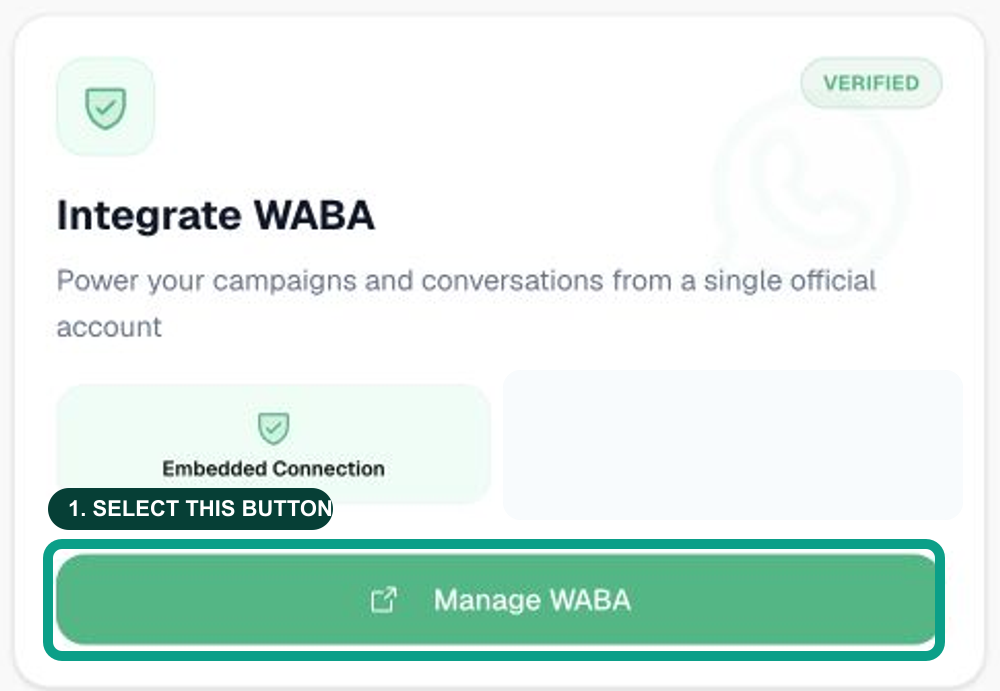
Connect WhatsApp, step by step
- Open the connection card.
Where: Dashboard → Integrate WABA. On the Dashboard, look for the white card titled Integrate WABA, then select the green Manage WABA button at the bottom of that card. - Choose Embedded Connection.
Where: WABA connection screen → Embedded Connection. Select the option marked Embedded Connection. This begins the official Meta setup. - Sign in to Meta.
Where: the Meta window that opens after you choose Embedded Connection. Sign in with the Facebook account that manages your business. Do not share your password or verification code with anyone. - Select your business and WhatsApp account.
Where: Meta’s setup window. Follow the prompts to choose the correct business, WhatsApp Business Account, and phone number. - Complete Meta’s checks.
Where: the final Meta screens. Add payment information only if Meta requests it, review the permissions, then finish the flow. - Return to Wtflo and confirm the status.
Where: back in Dashboard → Integrate WABA. Wait for Wtflo to show that the connection is active or verified.
What success looks like
On the Dashboard, the Integrate WABA card shows a Verified status. You can then use WA Chat and create WhatsApp message templates.
If Meta does not let you continue
| What you see | What to check |
|---|---|
| The business or number is missing | Sign in with a Facebook account that is an admin of that Meta Business Portfolio and WhatsApp Business Account. |
| Meta asks for a number check | Keep the phone for that number available and complete the verification shown by Meta. |
| The window closes or an error appears | Take a screenshot of the error and contact Wtflo support. Never send passwords or verification codes. |
Next
Once your connection is verified, set up your workspace and invite the people who will handle conversations.