What happens here
Use Contact Directory to find customers by name, phone number, or custom field; add a contact yourself; and open a profile to see its details. Contacts can also be created when someone messages your connected WhatsApp number.
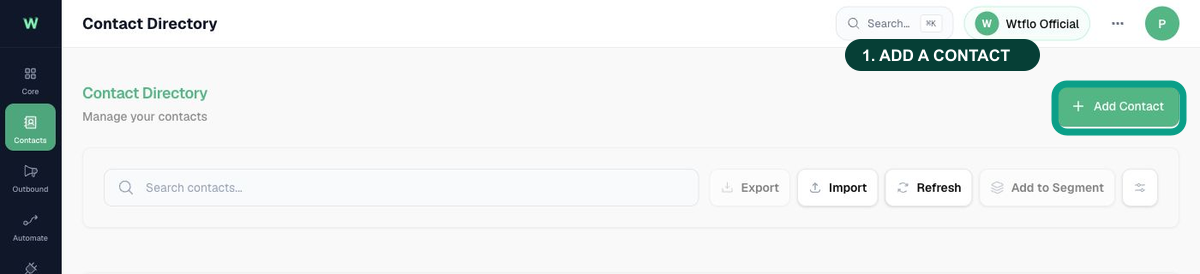
Use Contact Directory, step by step
- Open Contact Directory.
Where: Left sidebar → Contacts → Contact Directory. Select Contacts first; its menu opens beside the sidebar. Then choose Contact Directory. - Find an existing contact.
Where: the search area at the top of Contact Directory. Search using the person’s name, phone number, or a custom field. - Add one contact manually.
Where: the Add contact button on the Contact Directory screen. Add their name and phone number, including the country code—for example, +91 for India. - Open the person’s profile.
Where: any contact row in the list. Select the row to update their details, tags, and conversation-history link. - Use bulk actions only when appropriate.
Where: the contact-list actions. Export and bulk actions are available only when your role has permission.
Before you message anyone
Start with a small internal test segment. Only use campaigns for people who expect messages from your business, and keep test contacts separate from customer lists.
If you cannot see a menu or action
| What you see | What to do |
|---|---|
| Contacts is missing from the left menu | Ask your workspace owner to check your role permissions. |
| A contact is not appearing | Check the full phone number, including country code, then use search again. |
| You are about to import a large list | Test a small segment first and confirm the data is correct before you continue. |